

What it is and what it’s for
A tag is a category you assign to a chat, a contact, or an FAQ to identify and group it. For example, “Interested in sneakers,” “Wholesale customer,” or “Shipping.”
Why you need it: Without tags, all your information is mixed together. You can’t tell which topics your customers ask about most or send a campaign only to people interested in a specific product.
What you use it for:
- Classify your conversations by topic, manually or automatically with AI.
- Segment your contacts to send campaigns to specific audiences.
- Organize the FAQs your AI Agent uses.
- Create dynamic lists of contacts that update automatically based on their tags.
Before you start
Keep two rules in mind before creating a tag:
- Tags can’t be deleted. If you no longer need one, you can hide it.
- The tag type can’t be changed after it’s created.
That’s why it’s worth defining the name and type carefully before saving it.
Tag types
Each tag belongs to one of these three types:
| Type | What it’s for | Where it’s assigned | Who assigns it |
|---|---|---|---|
| Chats | Classify conversations by topic | In the Chats section | The AI (with automatic tagging) or your team |
| Contacts | Segment contacts for lists and campaigns | In each contact’s profile | Your team or some integrations |
| Knowledge source | Organize the AI Agent’s FAQs | In each FAQ | Your team |
How to create a tag step by step
Step 1 — Go to Tags
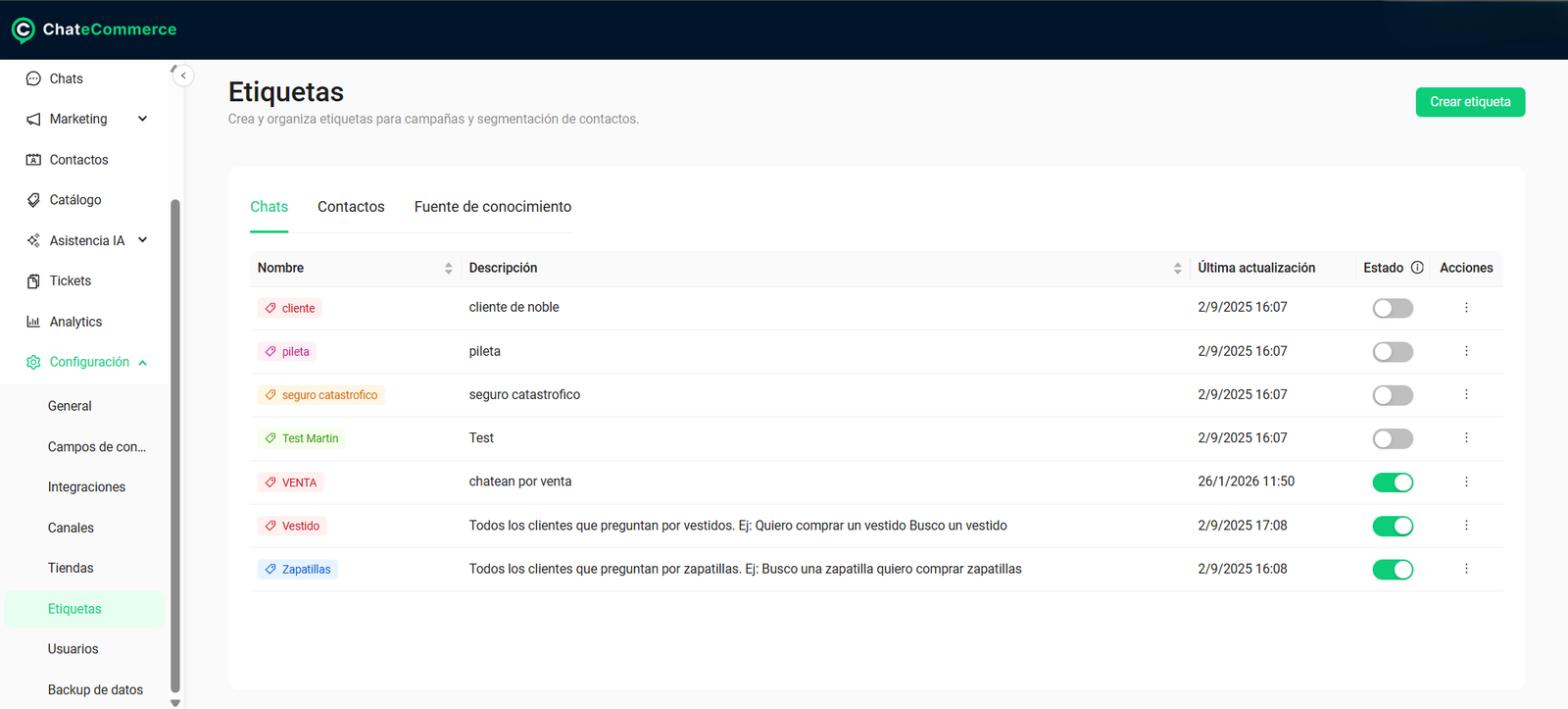
In the side menu, go to Settings → Tags. You’ll see one tab for each type: Chats, Contacts, and Knowledge source.
Step 2 — Open the form
Click Create tag.
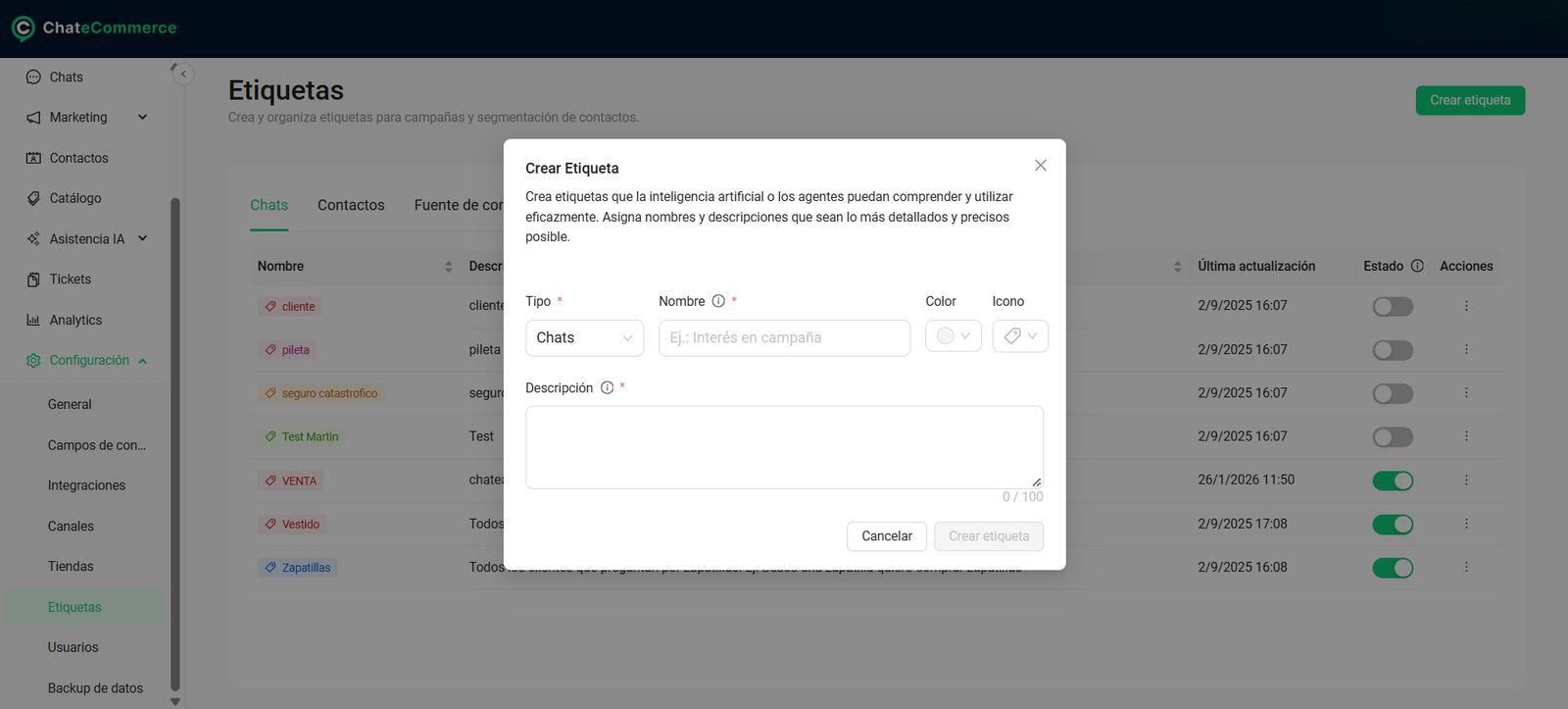
Step 3 — Fill in the fields
| Field | Required? | What to enter |
|---|---|---|
| Type | Yes | Chats, Contacts, or Knowledge source. It can’t be changed later. |
| Name | Yes | A representative name, so it’s easy to identify. Avoid generic terms like “Other” or “Miscellaneous.” |
| Color | No | Helps you tell tags apart at a glance. |
| Icon | No | Like color, it’s a visual aid. |
| Description | Recommended | What the tag is for, in up to 100 characters. For Chats tags, it’s key because the AI uses it to decide when to assign them. |
Step 4 — Save
Click Create tag. The tag will appear in its type’s tab as visible.
How to write good names and descriptions
The name is what you’ll see in chats, contacts, and reports. It should be clear without opening the tag.
| Unhelpful name | Effective name |
|---|---|
| “Other” | “Shipping inquiry” |
| “Test” | “Interested in sneakers” |
| “Campaign” | “Hot Sale Campaign 2026” |
The description is especially important for Chats tags, because it’s the criteria the AI uses to assign them. For Contacts and Knowledge source tags, it helps your whole team use each tag consistently.
To learn how to write descriptions the AI understands, see Automatic tagging: organize and analyze your conversations with AI.
How to manage your tags
Edit a tag
In the list, click the tag’s ⋮ menu and choose Edit. You can change the name, color, icon, and description. The type can’t be changed.
Show or hide a tag
Use the toggle in the Status column. When you hide a tag, it stops appearing in the conversations it was already assigned to. You can show it again at any time.
Important: Hiding is the only way to stop using a tag, since tags can’t be deleted.
How to use each tag type
Chats tags
They’re assigned to conversations. You can assign them manually from the Chats section or let the AI assign them automatically when each chat closes.
→ Automatic tagging: organize and analyze your conversations with AI
Contacts tags
They’re assigned to each contact, and a single contact can have several. In Contacts, click Edit on the contact’s row (or + Add for a new contact) and use the Add tag field to choose the tags.
Some integrations also create tags to identify imported contacts. For example, the “HubSpot” tag groups contacts imported from HubSpot.
Add tag field in a contact’s profile in ChateCommerce
Knowledge source tags
They’re assigned to the AI Agent’s FAQs, using the Add tag button on each question. They help you organize them, and the AI uses them to find the right information faster.
→ Knowledge sources: train your AI Agent
How to use tags to segment your campaigns
Campaigns aren’t sent to a tag directly, but to a contact list. The key is dynamic lists: lists built with tag filters that update automatically every time a contact gains or loses that tag.
The full flow is:
Tag → Dynamic list → Campaign
Step 1 — Tag your contacts or chats
Assign Contacts tags from each contact’s profile, or use the Chats tags assigned by your team or the AI.
Step 2 — Create a list filtered by tag
- Go to Contacts → Lists tab and click Create list.
- Enter the list name.
- Click Add filter and set it up using:
- Tags
- From chat or From contact, depending on the tag type you want to use
- A condition (see the table below)
- The tag or tags
- Click Accept and then Apply to see the contacts that match the filter.
- Click Create list.
| Condition | Which contacts it includes | Example |
|---|---|---|
| Is equal to | Those with that tag | Customers tagged “Interested in sneakers” |
| Is not equal to | Those without that tag | Everyone except those who already bought during Hot Sale |
| Is any of | Those with at least one of the selected tags | Customers interested in sneakers or boots |
Tag filter when creating a contact list in ChateCommerce
Important: Only contacts with an Accepted subscription status are included in a list.
You can also combine the tag filter with other filters (country, orders, or campaign interaction) using the AND / OR operators. We explain how in Contact lists: how to create them with filters.
Step 3 — Choose the list in your campaign
In Marketing → Campaigns, when creating a campaign, go to Target audience, choose Contact lists, and select the list you created.
Example
The AI tags all chats where customers ask about sneakers as Interested in sneakers.
You create a list with the filter Tags → From chat → Is equal to → Interested in sneakers.
When you launch a new sneaker collection, you send the campaign only to that list.
Since the list is dynamic, every new customer who asks about sneakers is automatically added to the audience of your next campaign. And the other way around: if a tag is removed from a contact, they’re automatically removed from the list.
Best practices
- Plan before you create. Since tags can’t be deleted and the type can’t be changed, define a list of tags before you start creating them.
- Use a naming convention. For example, start campaign tags with “Campaign” followed by the name and date (“Campaign Hot Sale 2026”). That way they’re grouped together and easy to find.
- Choose the type based on where you’ll use the tag. To classify conversations, use Chats. To segment people for campaigns, use Contacts. To organize FAQs, use Knowledge source.
- Use automatic tagging to segment. The Chats tags assigned by the AI let you create contact lists based on what customers asked about, without tagging anyone manually.
- Use “Is not equal to” to exclude. For example, to avoid sending a promotion to someone who already bought, filter for contacts without that purchase’s tag.
- Hide tags you no longer use. A long list of old tags makes it harder to choose the right one.
- Always write a description. For Chats tags, the AI needs it to assign them correctly. For the others, it helps your whole team use each tag consistently.
Common issues and solutions
I can’t find a tag when assigning it to a contact
Possible cause: The tag is a different type, for example a Chats tag.
Solution: Only Contacts tags appear in a contact’s profile. Check which tab the tag is in under Settings → Tags.
Possible cause: The tag is hidden.
Solution: Show it again using the toggle in the Status column.
I created a tag with the wrong type
Possible cause: The type can’t be changed after the tag is created.
Solution: Hide the tag and create a new one with the correct type.
My list doesn’t show the contacts I expected
Possible cause: The contacts don’t have an Accepted subscription status.
Solution: Only contacts who accepted the subscription are included in a list. Check the Subscription request field in the contact’s profile.
Possible cause: The filter uses the wrong tag source.
Solution: Check whether you chose From chat or From contact. A Contacts tag doesn’t appear in a chat filter, and vice versa.
Frequently asked questions
Can I delete a tag?
No. You can hide it using the toggle in the Status column.
Can I change a tag’s type?
No. If you made a mistake, hide the tag and create a new one with the correct type.
What happens if I hide a tag?
It stops appearing in the conversations it was already assigned to. You can show it again at any time.
Can a contact have multiple tags?
Yes. You can assign as many Contacts tags as you need.
Can I send a campaign directly to a tag?
Not directly. First you create a contact list filtered by that tag, and then you choose the list as the campaign’s audience.
Do lists update automatically?
Yes. Dynamic lists update based on the tags assigned to each contact.
Can I use the tags assigned by the AI for my campaigns?
Yes. When creating a list, filter by Tags → From chat and choose the tag. The list will include contacts whose chats have that tag.
Why doesn’t a contact with the tag appear in my list?
Because only contacts with an Accepted subscription status are included in a list.
