

What it is and what it’s for
A tag is a category you assign to a chat to identify what it was about. For example, “Shipping,” “Complaint,” or “Sneakers.”
With automatic tagging, ChateCommerce AI assigns a tag to each chat when it closes. To choose it, the AI analyzes the entire conversation and compares it with the description you wrote for each tag.
Why you need it: tagging every chat manually takes time, and each team member may apply different criteria. Without tags, you can’t know which topics your customers ask about most.
What you use it for:
- Save the time spent tagging conversations manually.
- Always apply the same criteria, defined by you in each tag’s description.
- Identify the most common topics and reasons for contact.
- Analyze trends in the Analytics tag report.
Before you start
Requirements:
- Have at least one Chats tag created, with its description.
- Turn on Allow smart tagging (we explain how below).
⚠️ Important note: the AI doesn’t create new tags. It only assigns the ones you created beforehand, and only when the chat closes.
Tag types
In Settings → Tags, there are three tag types. Automatic tagging only uses Chats tags:
| Type | What it’s for | Used by automatic tagging? |
|---|---|---|
| Chats | Classify conversations by topic. | ✅ Yes |
| Contacts | Segment contacts, for example, for campaigns. | ❌ No |
| Knowledge source | Organize the AI Agent’s FAQs. | ❌ No |
How to create a tag step by step
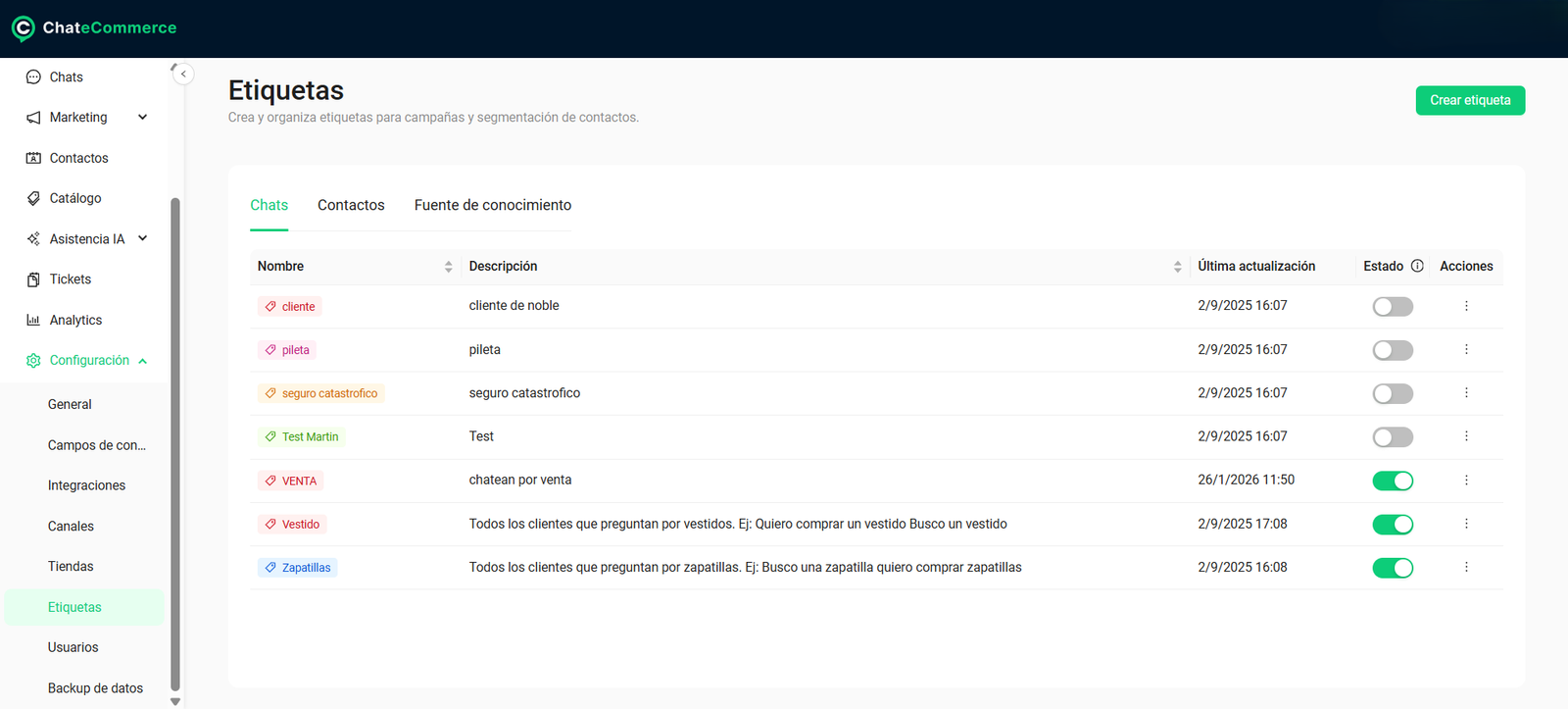
Step 1 — Go to Tags
In the side menu, go to Settings → Tags.
Step 2 — Open the form
Click Create tag.
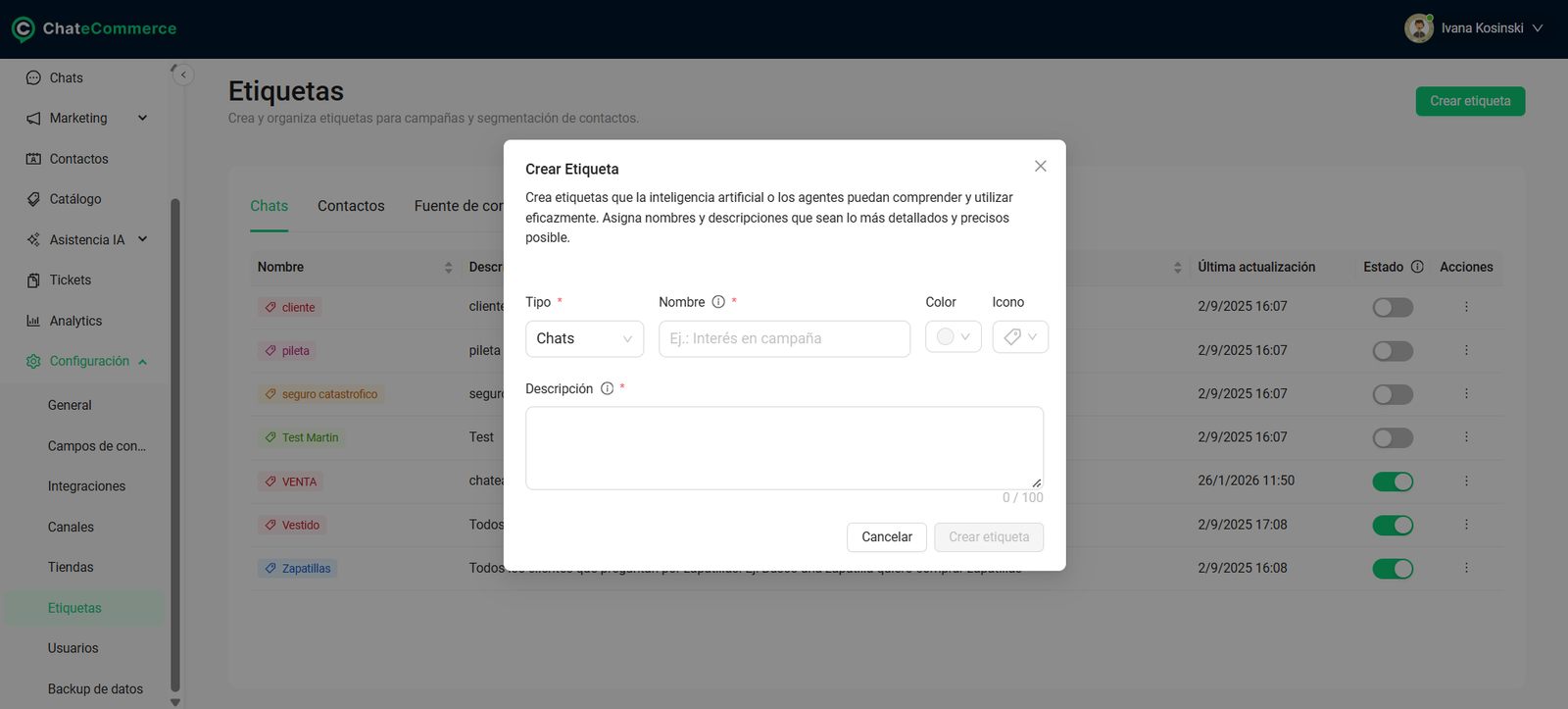
Step 3 — Fill in the fields
| Field | Required? | What to enter |
|---|---|---|
| Type | Yes | Select Chats. |
| Name | Yes | A representative name for the topic, so it’s easy to identify. For example: “Shipping.” Avoid generic terms like “Other” or “Miscellaneous”. |
| Color | No | Helps you tell tags apart at a glance. |
| Icon | No | Like color, it’s a visual aid. |
| Description | Yes | The criteria the AI will use to assign the tag. Maximum 100 characters. |
Step 4 — Save
Click Create tag. The tag will appear in the list as visible.
How to write a good description
The description is the instruction the AI reads to decide whether a chat matches that tag. If it’s vague, the AI won’t have clear criteria to assign it.
| ❌ Unhelpful description | ✅ Effective description |
|---|---|
| “Pool” | “Customers asking about pools or pool accessories. E.g.: Do you have above-ground pools?” |
| “Test” | “Customers asking about shipping. E.g.: How long does delivery take?” |
| “Sale” | “Customers who want to buy a product. E.g.: I want to buy, how do I pay?” |
Practical formula: “Customers asking about [topic]. E.g.: [real customer phrase]”. Including one or two example phrases helps the AI recognize the topic even if the customer uses different words.
How to enable automatic tagging
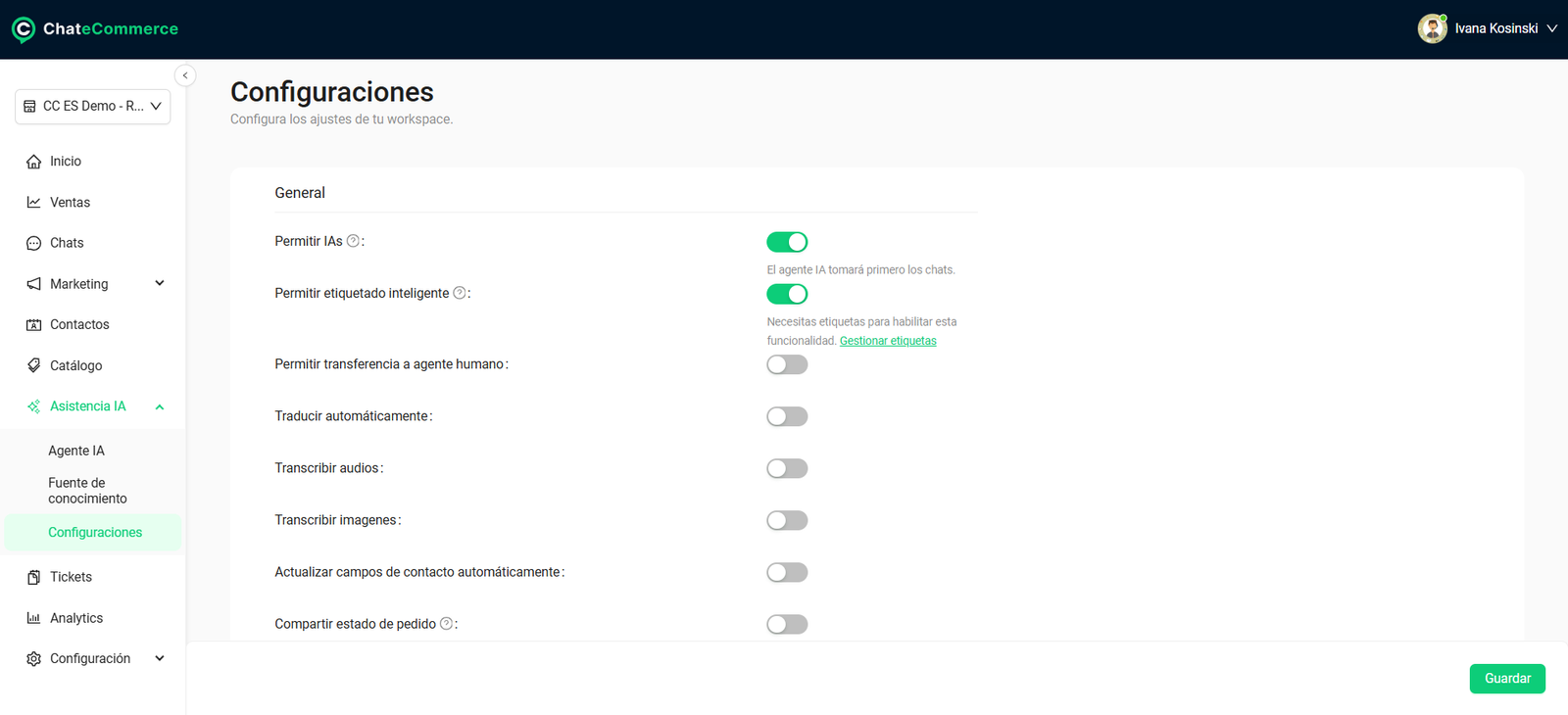
Once your tags are created, go to AI Assistance → Settings and turn on Allow smart tagging.
From that moment on, the AI will automatically tag your chats based on the content of each conversation, using the tags you created in the Tags section.
Important: this option can only be enabled if you already have tags created. If you don’t have any yet, click Manage tags, below the toggle, to go straight to creating them.
How it works in practice
When the tag is assigned
Automatic tagging is applied when a chat closes, whether manually or automatically. At that moment, the AI:
- Analyzes the entire conversation.
- Compares it with the descriptions of your Chats tags.
- If one matches, assigns that tag to the chat.
The time a chat stays open before closing automatically can be configured.
Example
- Tag: Sneakers
- Description: “Customers asking about sneakers. E.g.: I’m looking for sneakers, do you have size 9?”
- Result: a customer asks whether a sneaker model is in stock. When the chat closes, the AI assigns the Sneakers tag.
Automatic tagging rules
| Rule | Detail |
|---|---|
| Tags per chat | Only one. |
| When it applies | Only to closed chats. |
| Which tags it uses | Only the Chats tags you created. |
| What it’s based on | Exclusively on each tag’s description. |
Manual tagging and AI suggestions
In addition to automatic tagging, in the Chats section you can:
- Assign a tag manually.
- Ask the AI for a tag suggestion before closing the chat.
How to analyze your tags in Analytics
In the Analytics section, the tag share report shows you:
- The distribution of conversations by tag.
- The most frequent topics.
- Trends in the reasons for contact.
Example of use: if “Shipping” is the most frequent tag in your chats, consider adding more shipping information to your AI Agent’s knowledge sources.
Best practices
1. Write specific descriptions. Repeating the tag name in the description (“Pool: pool”) gives the AI no criteria to assign it.
2. Include example phrases in the description. “All customers asking about dresses. E.g.: I want to buy a dress” works better than “Dresses,” because it shows the AI how your customers actually write.
3. Avoid generic tags. Names like “Other” or “Miscellaneous” tell you nothing in Analytics reports and give the AI an easy option for chats that should have a more precise tag.
4. Avoid overlapping tags. If “Shipping” and “Order tracking” describe almost the same thing, the AI may assign either one to similar chats. Since only one tag is assigned per chat, set clear boundaries between them.
5. Start with a few tags. Between 5 and 10 tags covering your main reasons for contact are easier to maintain and produce clearer reports.
6. Review the results during the first few weeks. Open some tagged chats and check that the tag is correct. If it isn’t, adjust the description.
7. Use Analytics to improve your agent. The most frequent topics are the ones worth reinforcing in your knowledge sources.
Common issues and solutions
The AI isn’t assigning tags to my chats
Possible cause: automatic tagging isn’t enabled.
Solution: in AI Assistance → Settings, check that Allow smart tagging is turned on.
Possible cause: the chat hasn’t closed yet.
Solution: automatic tagging only applies to closed chats. Check the time set for automatic closing.
Possible cause: the tags aren’t Chats tags.
Solution: in Settings → Tags, check that the tags are in the Chats tab.
Possible cause: no description matches the conversation.
Solution: this is the expected behavior. If that topic comes up often, create a new tag to cover it.
I can’t enable smart tagging
Possible cause: you don’t have any tags created.
Solution: click Manage tags, below the toggle, create at least one Chats tag, and try again.
The AI assigns the wrong tag
Possible cause: the description is vague or overlaps with another tag.
Solution: rewrite the description with more specific criteria, add an example phrase, and differentiate it from similar tags.
I need to assign more than one tag to a chat
Possible cause: automatic tagging assigns only one tag per chat.
Solution: assign additional tags manually from the Chats section.
Frequently asked questions
Do I need to enable automatic tagging?
Yes. After creating your tags, turn on Allow smart tagging in AI Assistance → Settings.
Can the AI create new tags?
No. It only assigns tags you created beforehand.
How many tags does the AI assign per chat?
One.
Are open chats tagged?
No. Automatic tagging only applies when the chat closes.
Can I change a tag assigned by the AI?
Yes. You can change the tag manually from the Chats section.
How many characters can the description have?
Up to 100 characters.
What happens if I hide a tag?
It stops appearing in the conversations it was already assigned to. You can show it again at any time from Settings → Tags, using the toggle in the Status column.
