

What it is and what it’s for
Knowledge sources are the information about your business that the AI Agent uses to answer your customers: frequently asked questions, pages from your website, and documents. Training the agent means loading that information so it can use it in every conversation. Your team can also access this information when responding.
ChateCommerce offers three types of sources:
- FAQs: questions and answers you write in the platform or import from a file.
- Links: pages from your website that the agent analyzes and checks again at the frequency you choose.
- Files: documents in PDF, JPG, or PNG format.
Why you need it: without knowledge sources, the agent doesn’t know your policies, shipping, or promotions. It answers generically or escalates requests it could resolve on its own.
What you use it for:
- Make the agent respond with real, specific information about your business.
- Keep its answers up to date when your policies or website change.
- Reduce the number of requests that reach your team.
Before you start
Requirements:
- Have your AI Agent configured.
Important note: loading knowledge sources doesn’t use credits.
Which source to use in each case
| Source | Best for | How it’s updated | Example |
|---|---|---|---|
| FAQs | Specific answers you want to control word for word. | You edit or import them in the platform. | “How long does shipping take?” |
| Links | Information already on your website that changes often. | Automatically, at the frequency you choose. | Shipping policy page. |
| Files | Documents that aren’t published on your website. | By replacing the file. | Size guide in PDF. |
How to load knowledge sources step by step
Go to AI Assistance → Knowledge source. You’ll see three tabs: FAQs, Links, and Files.
How to create an FAQ
- In the FAQs tab, click Add question.
- Write the question the way a customer would ask it and the answer the agent should give.
- If needed, attach a file to complement the answer (PDF, JPG, or PNG).
- Save your changes.
- On the question you created, click Add tag to organize it.
Why tag your FAQs: tags help you organize them, and the AI also uses them to find the right information faster. FAQ tags are of the Knowledge source type and are managed in Settings → Tags.
How to import multiple FAQs at once
If you already have your FAQs in a document, you can upload them all together with a CSV file (a spreadsheet format you can export from Excel or Google Sheets).
- In the FAQs tab, click Import file.
- Click Download sample CSV template and fill in your questions and answers using that format.
- Select the file or drag it into the box.
- Choose how to import:
- Without Overwrite: the FAQs in the file are added to the ones you already have.
- With Overwrite: all your current FAQs are deleted and replaced with the ones in the file.
- Click Upload.
Important:
- Overwrite deletes all your current FAQs, including the ones you created manually. Only turn it on if the file contains every question you want to keep.
- The platform doesn’t detect duplicate questions. If you import a file with existing questions without Overwrite, they will be duplicated.
How to edit or delete an FAQ
Click the question to expand the answer. From there, you can use Edit to change it or the trash icon to delete it. Each FAQ shows the date it was last updated.
How to add a link
- In the Links tab, click Add link.
- Paste the URL of the page you want the agent to analyze.
- Choose the update frequency: daily, weekly, monthly, or custom.
- Save your changes.
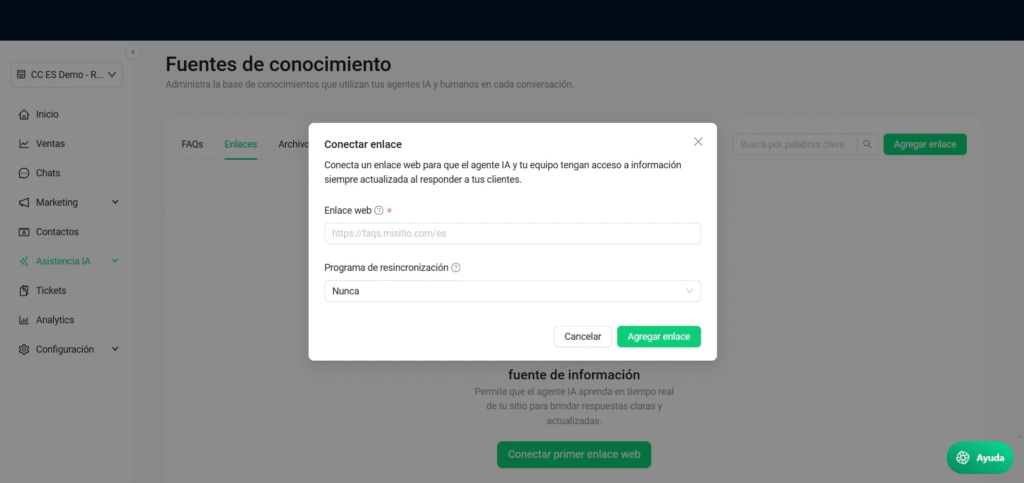
Important: the agent only analyzes the exact page you load. It doesn’t follow the internal links on that page.
Example: if you load your website’s home page, the agent won’t automatically read your shipping or returns pages. To use them, load each one separately.
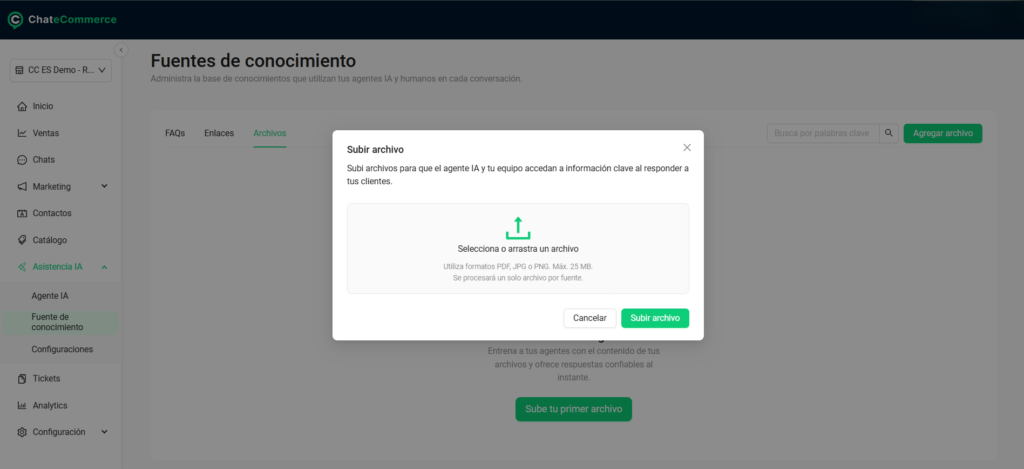
How to upload a file
- In the Files tab, click Add file.
- In the Upload file window, select the file or drag it into the box. You can use PDF, JPG, or PNG files of up to 25 MB.
- Click Upload file.
Each file is processed as a separate source. If you have three documents, upload them as three separate sources.
How it works in practice
What happens when you load a source
The agent analyzes the content, stores the relevant information, and uses it to respond from that moment on.
What happens when you delete or replace a source
You can delete or replace a source at any time. When you do:
- The information from that source is no longer part of the agent’s knowledge.
- The agent stops using it to respond.
- If you replace it with a new version, the agent uses the updated content.
Best practices
1. Use the right source for each type of information. If something is already on your website, load it as a link so it updates automatically. If you need to control the exact answer, create an FAQ.
2. Keep a master CSV with all your FAQs. If all your questions are in a single file, you can update them in bulk with Overwrite without losing any or creating duplicates. It also works as a backup.
3. Load specific pages, not the home page. A shipping page, a returns page, and a payment methods page give better results than your website’s home page.
4. Schedule updates based on how often the page changes. A promotions page may need a daily update. A policy page, a monthly one.
5. Write FAQs the way your customers ask. “Do you ship nationwide?” works better than “Shipping coverage.”
6. Delete outdated sources. An expired promotion or an old policy causes the agent to give incorrect information.
7. Test every change in the Playground. After loading or updating a source, check that the agent uses the new information.
Common issues and solutions
I have duplicate FAQs
Possible cause: you imported a file without Overwrite that contained existing questions.
Solution: delete the duplicate questions one by one. If there are many, import your complete CSV with Overwrite turned on to replace all your FAQs at once.
My FAQs disappeared after importing
Possible cause: you imported the file with Overwrite turned on.
Solution: import a file again that contains all the FAQs you want to keep. That’s why it’s a good idea to keep an updated master CSV.
The agent doesn’t use information from a page on my website
Possible cause: you loaded the home page and the information is on an internal page.
Solution: load the exact URL of the page that contains that information.
The agent responds with outdated information
Possible cause: the page changed, but the update frequency hasn’t been reached yet.
Solution: check the frequency set for that link and choose a shorter one if the page changes often.
Possible cause: there’s an old source with information that contradicts the new one.
Solution: delete the old source or replace the file with its updated version.
I can’t upload a file
Possible cause: the file is larger than 25 MB or isn’t in a compatible format.
Solution: check that it’s a PDF, JPG, or PNG and that it’s under 25 MB. If it’s larger, split it into several files.
Frequently asked questions
Does loading knowledge sources use credits?
No.
What file formats can I upload?
PDF, JPG, and PNG, up to 25 MB each. To import FAQs, the format is CSV.
Can I load many FAQs at once?
Yes. In the FAQs tab, use Import file with a CSV based on the sample template.
What does the Overwrite option do?
It deletes all your current FAQs and replaces them with the ones in the file. If you leave it off, the FAQs in the file are added to the ones you already have.
Does the platform detect duplicate questions?
No. If you import existing questions without turning on Overwrite, they will be duplicated.
Does the agent read every page of my website if I load the home page?
No. It only analyzes the exact page you load. Each page must be loaded separately.
How often is a link updated?
At the frequency you choose: daily, weekly, monthly, or custom.
What happens if I delete a source?
The agent stops using that information to respond.
What are tags for in FAQs?
To organize them and help the AI find the right information faster.
Importante: el agente solo analiza la página exacta que cargas. No recorre los links internos de esa página.
Ejemplo: si cargas la página principal de tu sitio, el agente no leerá automáticamente tus páginas de envíos o devoluciones. Para que las use, carga cada una por separado.
Cómo subir un archivo
- En la pestaña Archivos, haz clic en Agregar archivo.
- En la ventana Subir archivo, selecciona el archivo o arrástralo al recuadro. Puedes usar formatos PDF, JPG o PNG, de hasta 25 MB.
- Haz clic en Subir archivo.
Cada archivo se procesa como una fuente independiente. Si tienes tres documentos, súbelos como tres fuentes separadas.
Cómo funciona en la práctica
Qué pasa cuando cargas una fuente
El agente analiza el contenido, guarda la información relevante y la usa para responder a partir de ese momento.
Qué pasa cuando eliminas o reemplazas una fuente
Puedes eliminar o reemplazar una fuente en cualquier momento. Cuando lo haces:
- La información de esa fuente deja de formar parte del conocimiento del agente.
- El agente deja de usarla para responder.
- Si la reemplazas por una versión nueva, el agente usa el contenido actualizado.
Mejores prácticas
1. Usa la fuente adecuada para cada tipo de información. Si un dato ya está en tu sitio, cárgalo como enlace para que se actualice solo. Si necesitas controlar la respuesta exacta, crea una FAQ.
2. Mantén un CSV maestro con todas tus FAQs. Si tienes todas tus preguntas en un solo archivo, puedes actualizarlas en bloque con Sobrescribir sin riesgo de perder ninguna ni de generar duplicados. Además, te sirve como respaldo.
3. Carga páginas específicas, no la página principal. Una página de envíos, otra de devoluciones y otra de medios de pago dan mejores resultados que la home del sitio.
4. Programa actualizaciones según qué tan seguido cambia la página. Una página de promociones puede necesitar una actualización diaria. Una página de políticas, una mensual.
5. Escribe las FAQs como preguntan tus clientes. “¿Hacen envíos a todo el país?” funciona mejor que “Cobertura de envíos”.
6. Elimina las fuentes vencidas. Una promoción terminada o una política vieja hace que el agente dé información incorrecta.
7. Prueba cada cambio en el Playground. Después de cargar o actualizar una fuente, verifica que el agente use la información nueva.
Problemas frecuentes y soluciones
Tengo FAQs duplicadas
Causa posible: importaste un archivo sin Sobrescribir con preguntas que ya existían.
Solución: elimina las preguntas repetidas de a una. Si son muchas, importa tu CSV completo con Sobrescribir activado para reemplazar todas tus FAQs de una vez.
Desaparecieron mis FAQs después de importar
Causa posible: importaste el archivo con Sobrescribir activado.
Solución: vuelve a importar un archivo que contenga todas las FAQs que quieres conservar. Por eso conviene mantener un CSV maestro actualizado.
El agente no usa la información de una página de mi sitio
Causa posible: cargaste la página principal y la información está en una página interna.
Solución: carga la URL exacta de la página que contiene esa información.
El agente responde con información desactualizada
Causa posible: la página cambió, pero todavía no se cumplió la frecuencia de actualización.
Solución: revisa la frecuencia configurada en ese enlace y elige una más corta si la página cambia seguido.
Causa posible: hay una fuente vieja con información que contradice a la nueva.
Solución: elimina la fuente vieja o reemplaza el archivo por su versión actualizada.
No puedo subir un archivo
Causa posible: el archivo supera los 25 MB o no está en un formato compatible.
Solución: verifica que sea PDF, JPG o PNG y que pese menos de 25 MB. Si es más grande, divídelo en varios archivos.
Preguntas frecuentes
¿Cargar fuentes de conocimiento consume créditos?
No.
¿Qué formatos de archivo puedo subir?
PDF, JPG y PNG, de hasta 25 MB cada uno. Para importar FAQs, el formato es CSV.
¿Puedo cargar muchas FAQs a la vez?
Sí. En la pestaña FAQs, usa Importar archivo con un CSV basado en la plantilla de ejemplo.
¿Qué hace la opción Sobrescribir?
Elimina todas tus FAQs actuales y las reemplaza por las del archivo. Si la dejas desactivada, las FAQs del archivo se agregan a las que ya tienes.
¿La plataforma detecta preguntas duplicadas?
No. Si importas preguntas que ya existen sin activar Sobrescribir, quedarán repetidas.
¿El agente lee todas las páginas de mi sitio si cargo la principal?
No. Solo analiza la página exacta que cargas. Cada página debe cargarse por separado.
¿Cada cuánto se actualiza un enlace?
Según la frecuencia que elijas: diaria, semanal, mensual o personalizada.
¿Qué pasa si elimino una fuente?
El agente deja de usar esa información para responder.
¿Para qué sirven las etiquetas en las FAQs?
Para organizarlas y para que la IA encuentre más rápido la información correcta.
