

What It Is and What It’s For
Teams allow you to organize your agents into specialized groups based on their function, skill, or area of responsibility. Once configured, ChateCommerce (with the help of your AI Agent) can automatically route each chat to the most appropriate team.
Instead of letting all agents see all chats, teams filter your inbox: each person only sees chats assigned to their team. This improves organization, reduces noise, and accelerates response time.
All workspaces have a default General team that acts as a safety net when your AI can’t determine which team a chat belongs to.
Before You Begin
Requirements: ✓ Have at least 2 agents in your account (to create meaningful teams) ✓ Your AI Agent trained and active (for automatic routing) ✓ Administrator or supervisor access in your workspace
Important note: If you don’t use teams, everything works exactly as it does today. Your General team will receive all chats automatically.
How to Create a Team Step by Step
Step 1 — Go to Teams
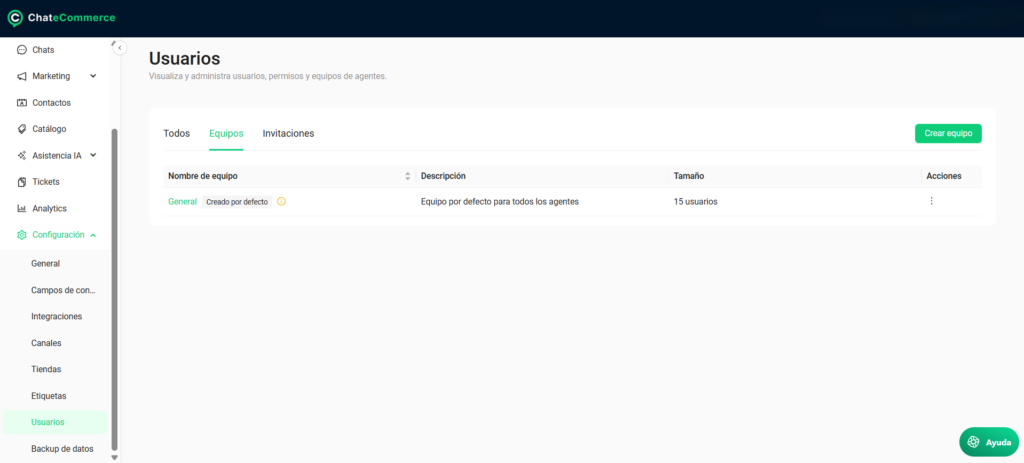
In the sidebar menu, go to Settings → Users → Teams.
You’ll see a list of existing teams. All workspaces have a default General team that cannot be deleted (but can be renamed).
Step 2 — Create a New Team
Click Create team.
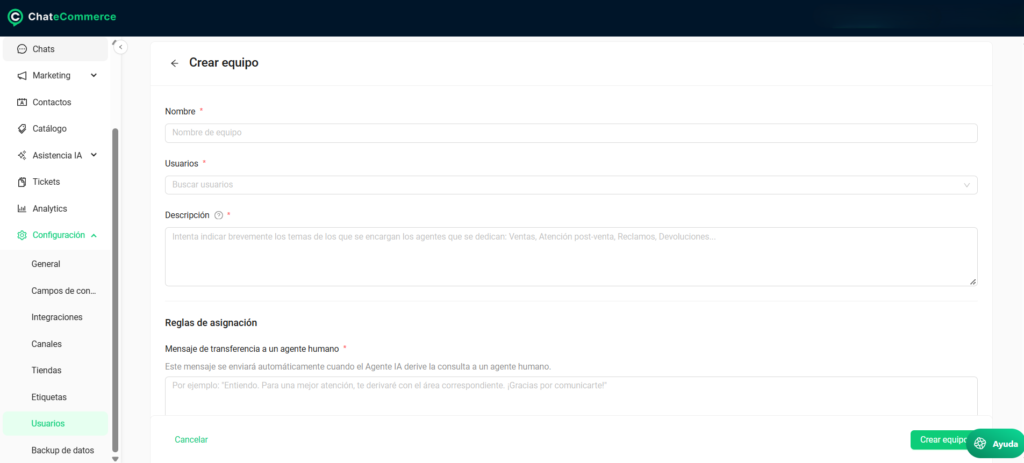
A form will open with 3 required fields:
Field 1: Name Give your team a clear name. Examples: “Technical Support”, “Sales”, “Returns”, “VIP”.
The name will appear in the console and in chat filters.
Field 2: Members Select at least one person to belong to the team. Use the selector to search for and add agents.
You can add or remove members at any time (except from the General team, which must include everyone).
Field 3: Description This is the most important part. The description acts as an instruction for the AI: it explains in which exact cases this team should receive chats.
Examples:
- “Technical Support” team: “Receives inquiries about platform errors, connection problems, bugs, feature failures, and any technical issues.”
- “Sales” team: “Receives inquiries about pricing, product features, available plans, offers, and any purchase questions.”
- “Returns” team: “Receives return requests, product exchanges, refunds, and post-sale order management.”
Tip: Be specific and avoid overlapping descriptions. If two teams have similar descriptions, the AI can get confused and make erratic decisions. Monitor performance in the first few days.
Step 3 — Configure Transfer Messages (Optional)
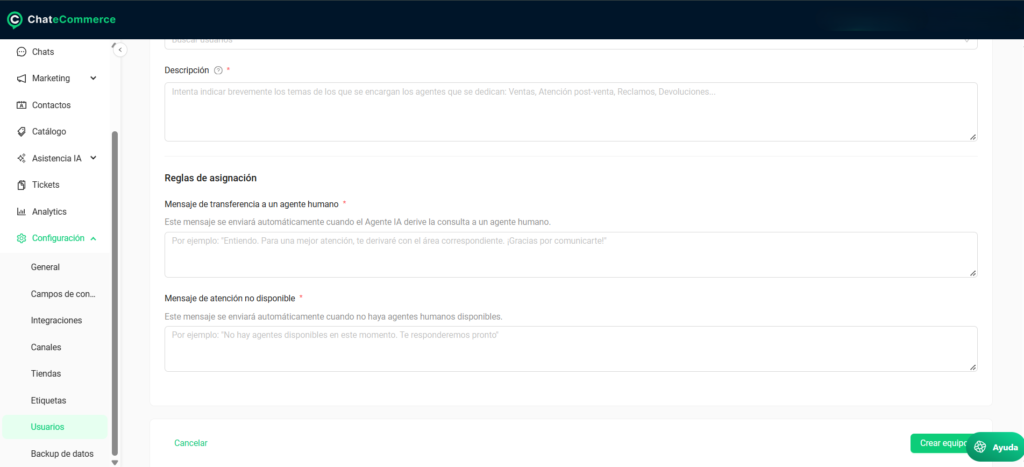
You can customize which message the customer receives when transferred to your team based on availability:
If agents are connected and available: “A member of our {team_name} team will assist you shortly.”
If no agents are connected: “Our {team_name} team is not available right now. We’ll contact you when they connect.”
If you leave these fields empty, default messages will be used.
Step 4 — Save
Click Create team. From that moment on, the team is active and your AI will begin routing chats based on the description you configured.
How Teams Work in Practice
Automatic Routing by AI
When a customer starts a chat, your AI Agent reads:
- The customer’s conversation / inquiry
- The descriptions of all your teams
- And decides which team it belongs to
Example:
- Customer: “I’m getting a 404 error on the platform”
- AI: “This is a technical issue → Technical Support Team”
General Team as Fallback
The General team acts as a safety net in 2 cases:
- When the AI can’t decide: If the inquiry doesn’t clearly fit any specific team, it goes to General
- When there are no agents available in the assigned team: If Technical Support has no one connected, the chat waits in the queue until someone connects (it’s not automatically redirected to General)
You don’t use teams: If you don’t create custom teams, all chats go to the General team and the functionality is identical to today.
Chat View by Team
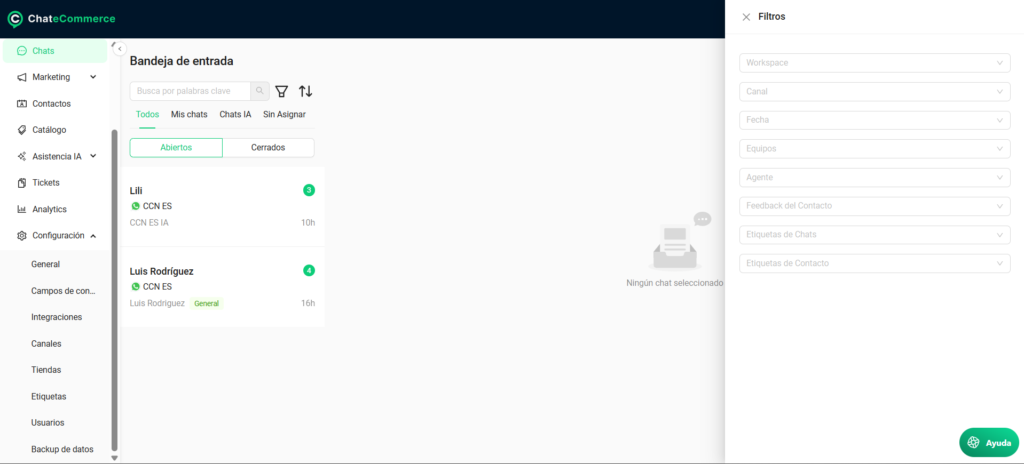
In the Chats section, you can filter by team. The dropdown selector shows:
- Teams (grouped with a distinctive icon)
- Individual agents
You can combine filters: “Show chats from Technical Support team + agent Maria” (AND logic).Puedes combinar filtros: “Mostrar chats del equipo Soporte Técnico + del agente María” (lógica AND).
Best Practices
1. Clear and specific descriptions The more precise your description, the better the routing will be. “Receives inquiries about X, Y, Z” is better than “General support team”.
2. Don’t overlap teams Avoid creating two teams with very similar criteria. If Technical Support and Premium Support have similar descriptions, the AI might misassign chats.
3. Monitor in the first few days Manually review some chats after implementing teams. If you see the AI is misassigning, adjust the descriptions.
4. Train your AI Agent The more context your AI has about your business, the better it will route. Train it with URLs, documents, or Q&A about your processes.
5. Keep the General team updated If you rename the General team, make sure the name remains intuitive. Example: “General Inquiries” is better than “Default”.
Frequently Asked Questions
How many teams can I create?
There is no maximum limit. Create as many as you need. But remember: more teams means more descriptions to maintain and monitor.
Can an agent belong to multiple teams?
Yes. The same agent can be part of Technical Support and Sales if they have the skills for both.
What happens if my team description is unclear?
The AI will make decisions based on its own judgment. It might misassign the chat. That’s why it’s important to be specific and monitor the results.
Can I delete the General team?
No. It is mandatory in all workspaces and acts as a fallback. However, you can rename it.
Can I remove agents from the General team?
No. The General team always includes all agents in your workspace.
Are chats automatically reassigned if I change a team’s description?
No. Chats that have already been assigned stay where they are. Only new chats will use the updated description.
What happens if an agent isn’t connected?
Chats assigned to their team wait in the queue until they connect. They are not automatically redirected to another team, unless the AI cannot determine which team the chat belongs to.
Can I customize the message when I transfer a chat to a team?
Yes. There are optional fields to customize messages depending on whether agents are available or not.
Do teams work without an AI Agent?
No. For automatic routing, you need to have your AI Agent active. Without AI, you would need to manually assign chats to teams.