

What it is and what it’s for
A ticket is a record of a pending task your team needs to resolve. For example, a delivery complaint, a return request, or an interested buyer who needs personalized attention.
In ChateCommerce, the AI Agent detects when a conversation includes a request it can’t resolve on its own. When that happens, it automatically creates a ticket with the customer’s details, the reason for contact, and a direct link to the chat.
💡 Why you need it: without this feature, you would have to manually review every conversation handled by the AI to find critical cases. With automatic tickets, those cases are centralized in one section, classified by type, and include all the context you need to act.
🗒️ What you use it for:
- Detect conversations that require human intervention without reviewing every chat.
- Centralize sales and post-sale requests in one place.
- Respond faster, with complete information from the first contact.
- Avoid losing sales opportunities or leaving complaints unanswered.
Before you start
Requirements:
- ✓ Have your AI Agent configured and active.
- ✓ Have at least one connected channel where the AI Agent serves your customers (WhatsApp, Instagram, or Messenger).
💡 Important note: the AI Agent doesn’t create a ticket for every conversation. It only does so when it detects a request it can’t resolve automatically and that matches one of the cases you selected in the settings.
How to enable automatic tickets
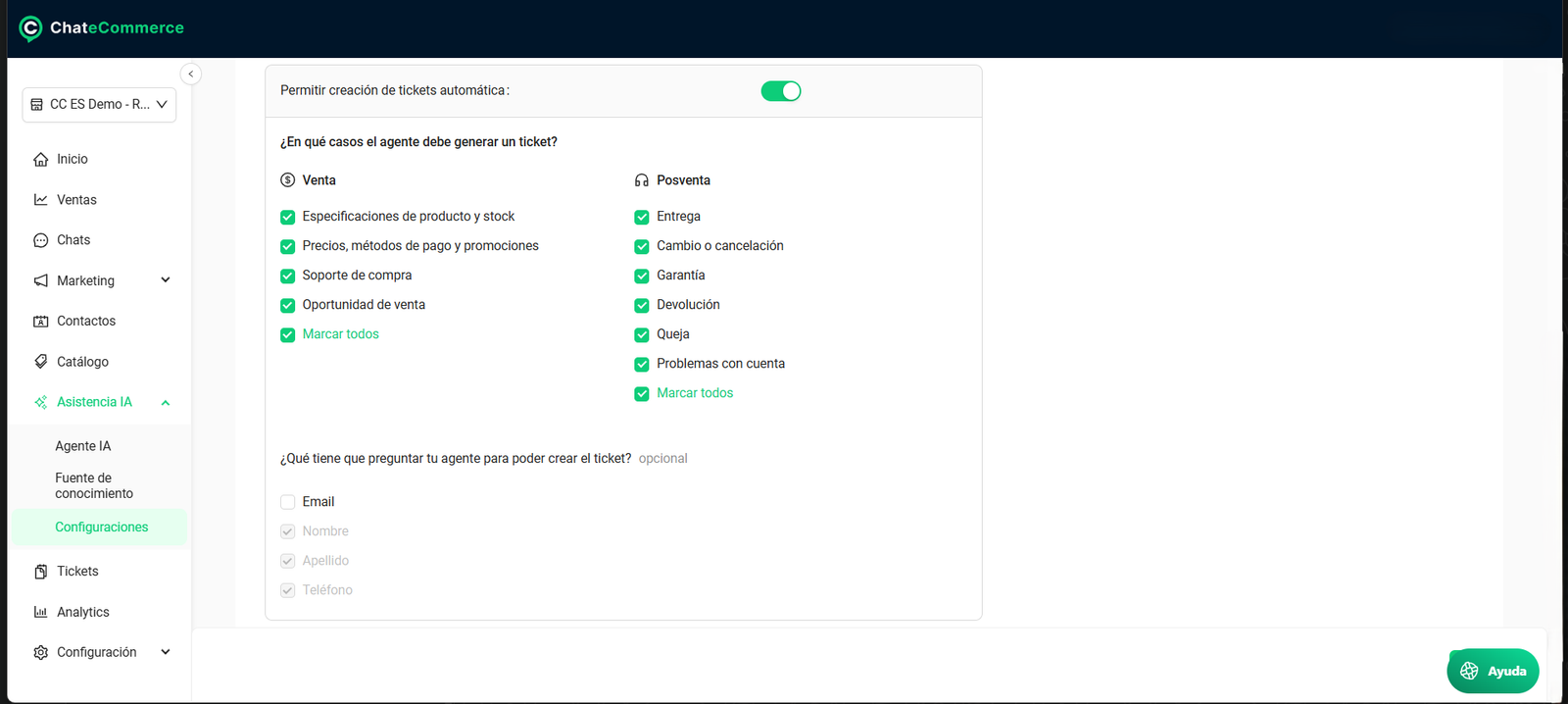
Go to AI Assistance → Settings and turn on Allow automatic ticket creation.
Once enabled, the In which cases should the agent generate a ticket? section appears, with the Sales and Post-sale subtypes. Select the cases in which you want the AI Agent to create tickets. You can select them one by one or use Select all in each column.
💡 Tip: if you’re just getting started, select all cases. After a few weeks, check which subtypes generate dismissed tickets and deselect them.
How tickets work in practice
What the AI Agent does before creating a ticket
When the AI Agent detects a request it can’t resolve, it follows this process:
- Identifies the case: recognizes that the request matches a ticket type and subtype.
- Requests the necessary information: asks the customer for the details the case requires.
- Completes the contact details: if key details are missing (first name, last name, or phone number), it asks for them in the conversation before creating the ticket.
- Generates the ticket: registers it in the Tickets section and notifies your team by email.
The entire process happens within the chat, with no manual intervention.
Example:
- Customer: “My order arrived damaged, I want to exchange it.”
- AI Agent: identifies the case as Post-sale → Exchange or cancellation, asks for the order number, confirms the customer’s details, and creates the ticket.
Ticket types and subtypes
The AI Agent classifies each ticket into one of two types, each with its own subtypes:
| Type | Subtypes | When it’s used |
|---|---|---|
| Sales | Product specifications and stock · Prices, payment methods, and promotions · Purchase support · Sales opportunity | Pre-purchase inquiries that need a salesperson’s attention |
| Post-sale | Delivery · Exchange or cancellation · Warranty · Return · Complaint · Account issues | Post-purchase requests that need action from your team |
What information each ticket includes
In the Tickets section, each record shows:
- Creation date
- Assigned area
- Type and subtype
- Reported by
- Contact (the customer)
- Status
- Direct link to the chat (View chat)
Ticket statuses
All tickets are created with the Open status. As your team progresses, you can change the status directly from the list:
| Status | Meaning |
|---|---|
| Open | Newly created ticket, pending attention |
| In progress | A team member is working on the case |
| Resolved | The request has been completed |
| Dismissed | The case didn’t require action or was a false positive |
Search and filters
At the top of the Tickets section, you’ll find the statuses as tabs: Open, In progress, Resolved, and Dismissed. Click one to see only those tickets.
You can also search by keywords or use the filter to view tickets by type and subtype. For example, you can view only Post-sale → Complaint tickets with Open status to prioritize pending complaints.
How to set up email notifications
Every time a ticket is created, ChateCommerce can send an email notification to your team. Notifications are organized by areas: each area groups the emails of the people who should receive the alert.
General Area
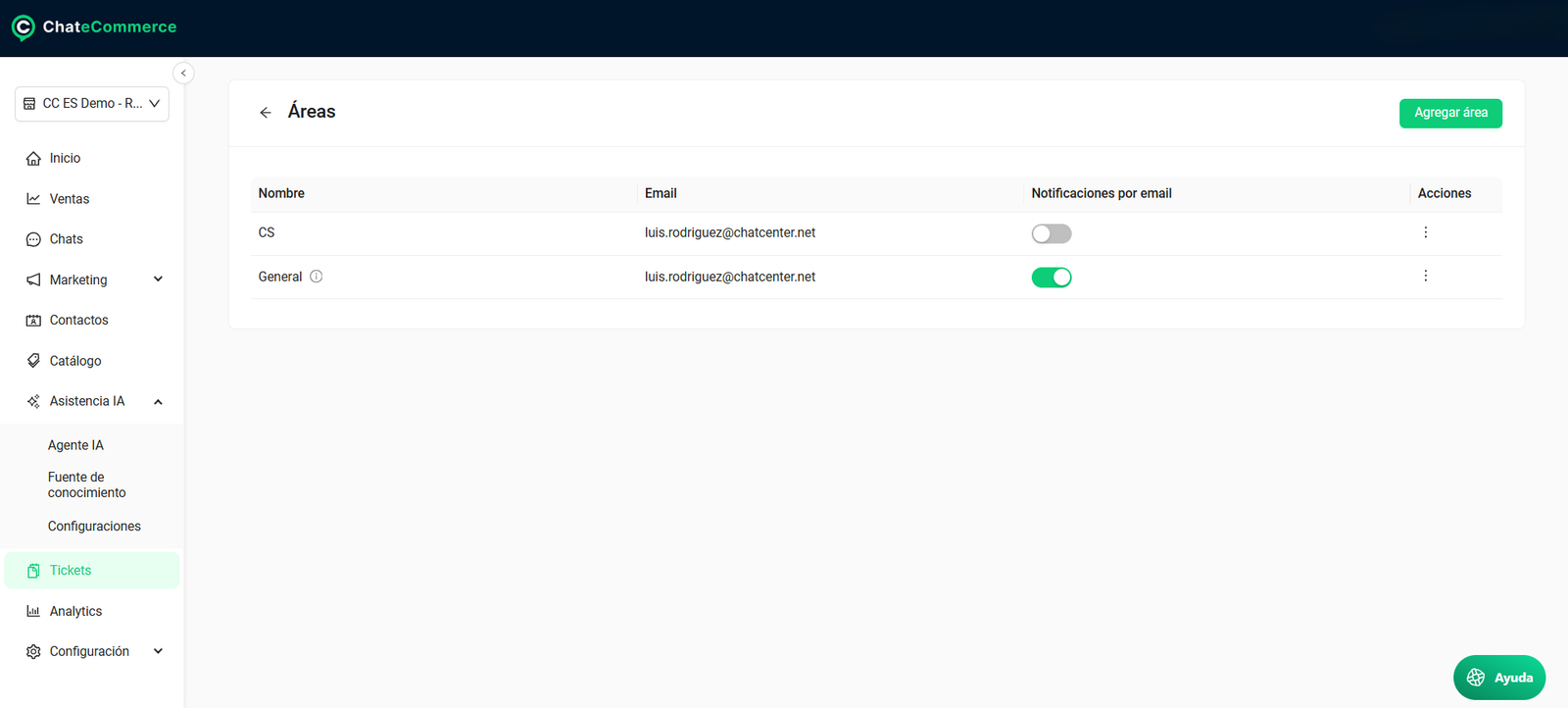
In the Tickets section, click Areas. There you’ll find the General Area, which is set up by default to receive notifications. The email you used to create your account is added automatically.
From the General Area actions, you can edit the name, add, delete, or edit recipient emails, and enable or disable notifications.
Create a new area
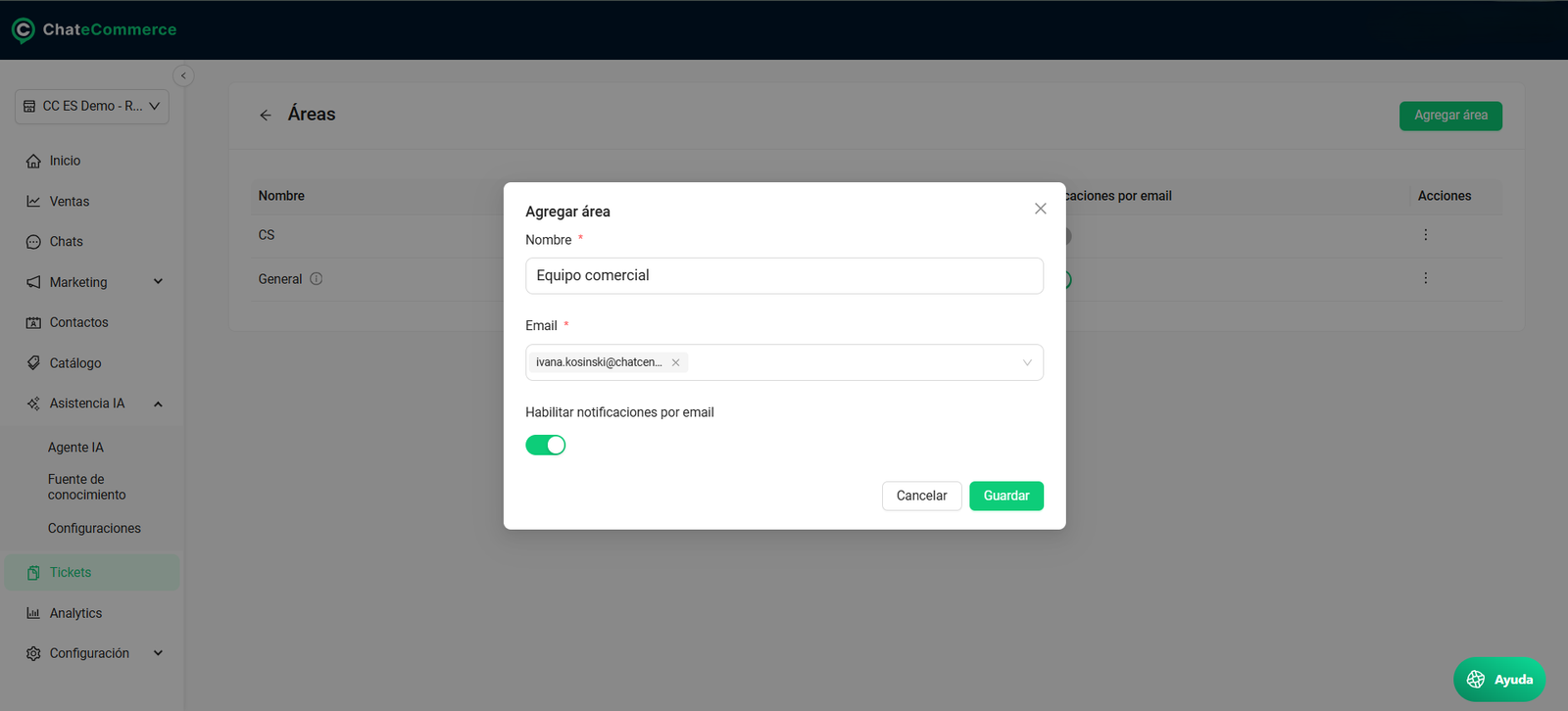
- In Tickets, click Areas and then Add new area.
- Enter the area name. For example, “Post-sale” or “Sales team”.
- Add the email addresses that will receive notifications.
- Turn on the notification options and save your changes.
Notification email
Each ticket generates an email with the case information for the responsible team.
Best practices
1. Add the emails of everyone responsible. If only the account email is listed, tickets may go unnoticed. Include the people who handle sales and post-sale.
2. Review open tickets every day. An open ticket is a customer waiting for a response. Use the Open tab at the start of each workday.
3. Update each ticket’s status. Moving tickets to In progress or Resolved prevents two people from working on the same case and shows you how much is still pending.
4. Use Dismissed for false positives. If the AI Agent created a ticket that didn’t require action, mark it as Dismissed instead of leaving it open. If the same subtype accumulates many dismissed tickets, deselect it in AI Assistance → Settings.
5. Prioritize by subtype. The Complaint and Delivery subtypes are usually the most urgent. Sales opportunity is a potential sale that loses value over time.
6. Train your AI Agent. The more information it has about your policies, shipping, and products, the more requests it will resolve on its own and the fewer unnecessary tickets it will create.
Common issues and solutions
1. The AI Agent isn’t creating tickets
Possible cause: the case isn’t selected.
Solution: in AI Assistance → Settings, check that the corresponding subtype is selected under In which cases should the agent generate a ticket?
Possible cause: the feature isn’t enabled.
Solution: in AI Assistance → Settings, check that Allow automatic ticket creation is turned on.
Possible cause: the AI Agent is resolving requests on its own.
Solution: this is the expected behavior. Tickets are only created when the request requires human handling.
2. I’m not receiving notification emails
Possible cause: notifications are disabled or your email isn’t added.
Solution: in Tickets, click Areas. Check that notifications are enabled and that your email is on the recipient list. Also check your spam folder.
3. The ticket takes a while to appear
Possible cause: customer details are missing.
Solution: the AI Agent asks for first name, last name, and phone number before creating the ticket. If the customer hasn’t replied yet, the ticket is generated once they complete the information.
Frequently asked questions
Does the AI Agent create a ticket for every conversation?
No. It only creates tickets when it detects a request it can’t resolve automatically and that matches one of the cases selected in Settings.
Can I choose which cases generate tickets?
Yes. In AI Assistance → Settings, you can select or deselect each Sales and Post-sale subtype. The AI Agent will only create tickets for the selected cases.
Can I change a ticket’s status manually?
Yes. You can update the status at any time directly from the ticket list.
Can I receive notifications at more than one email address?
Yes. You can add multiple email addresses to the General Area or create new areas with different recipients.
Does the customer receive a ticket confirmation?
No. The notification is internal, for your team. Communication with the customer continues in the chat.
What happens if customer details are missing?
The AI Agent asks for the missing information (first name, last name, or phone number) in the conversation before creating the ticket.
Can I go directly to the chat from a ticket?
Yes. Each ticket includes a View chat link to the conversation that generated it, with the full history.
