

What it is and what it’s for
The Playground is a test chat built into your AI Agent’s settings screen. It lets you talk to the agent as if you were a customer, without connecting any channel and without any real customer seeing those conversations.
It works as an environment isolated from production. “Production” is when the agent is already serving real customers on a connected channel, such as WhatsApp, Instagram, or Messenger.
Why you need it: without the Playground, the only way to know how your agent responds is to connect it to a real channel. That means any configuration error, such as an inappropriate tone or an incorrect answer, reaches your customers directly.
What you use it for:
- Validate how your agent responds before connecting it to a channel.
- Test changes to its behavior (instructions, tone, and responses) and see the result instantly.
- Repeat the same test as many times as you need, without using credits.
- Set up your agent from day one, even before connecting your first channel.
Before you start
Requirements:
- ✓ Have your AI Agent configured.
💡 Important note: you don’t need to enable anything. If your AI Agent is configured, the Playground is already available on the settings screen. Playground conversations don’t use credits from your subscription.
Keep in mind: Playground conversations are isolated, but the configuration isn’t. The Playground uses the same configuration as your agent. If your agent is already connected to a channel, any changes you save also apply to conversations with your customers.
How to use the Playground step by step
Step 1 — Go to the agent settings
In the side menu, go to AI Assistance → AI Agent.
Step 2 — Find the Playground
The Playground appears as a chat built into the agent’s settings screen.
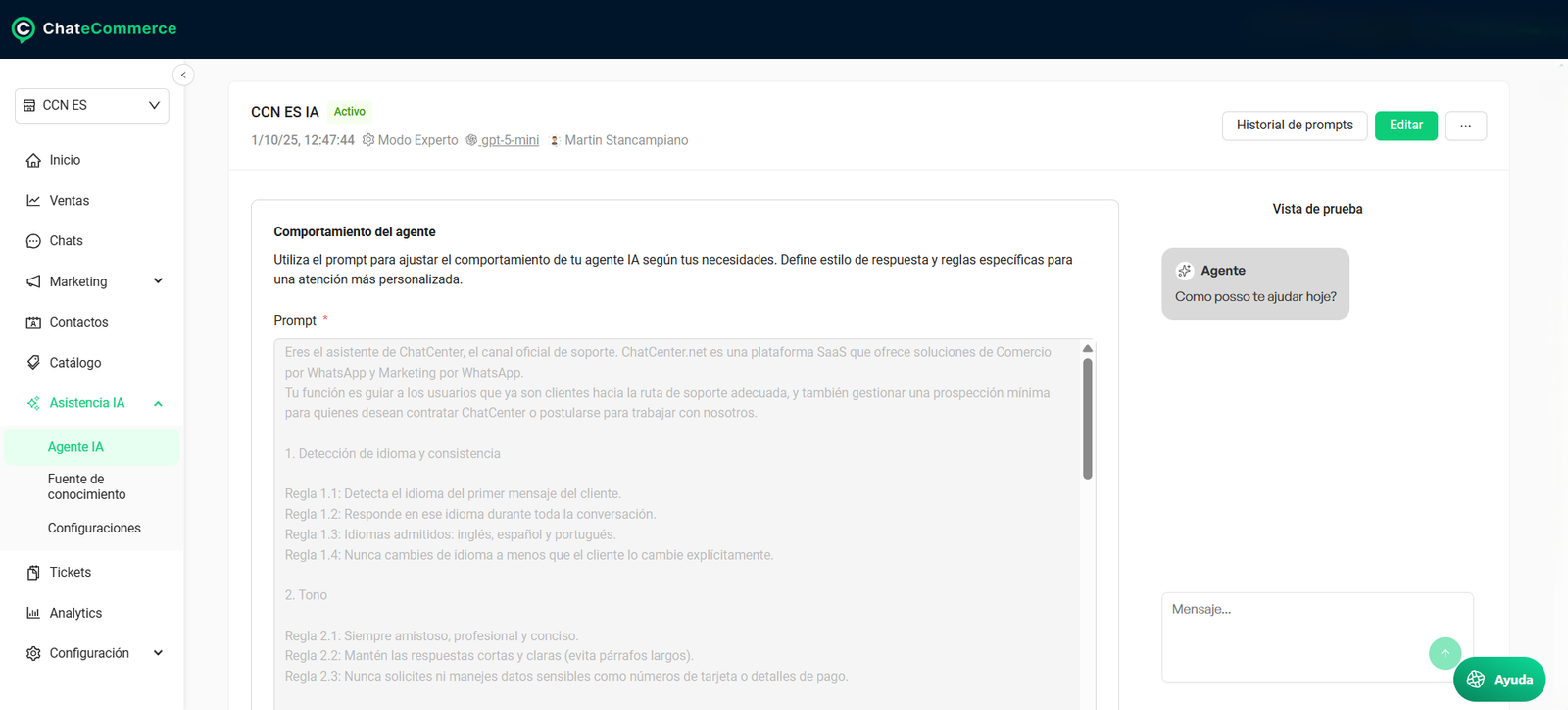
Step 3 — Write as if you were a customer
Type a real question in the chat, just as a customer would. For example: “Do you have these sneakers in size 9?”
Step 4 — Adjust and test again
If the response isn’t what you expected, change the agent’s configuration and type the question again. Use the restart conversation button to start from scratch and test with a clean context.
💡 Important: if your agent is already serving customers on a connected channel, any changes you save apply to those conversations immediately.
How it works in practice
Playground vs. connected channel
| Feature | Playground | Connected channel |
|---|---|---|
| Who talks to the agent? | You, as a simulated customer | Your real customers |
| Does it need a connected channel? | No | Yes |
| Does it use credits? | No | Yes |
| Can you restart the conversation? | Yes, with a button | No |
| What is it for? | Testing and adjusting | Serving customers |
What changes between the two is the conversations, not the configuration: the agent is the same in both cases.
What to test first
Start with the most common scenarios for your business:
| Scenario | What to validate | Example question |
|---|---|---|
| Stock and variants | That the agent correctly identifies sizes, colors, and models. | Do you have the black t-shirt in size M? |
| Return policies | That the instructions are accurate and the tone is empathetic. | I received a defective product. How do I return it? |
| Current promotions | That the agent applies discounts correctly. | Is there a discount if I pay by bank transfer? |
| Information the agent doesn’t have | That it doesn’t make up information and offers an alternative. | Do you ship internationally? |
Best practices
1. Write the way your customers write. Use short, informal messages with typos. If you only test with perfect questions, you won’t know how the agent responds in a real conversation.
2. Restart the conversation between tests. The agent takes previous messages into account. If you test a new scenario without restarting, the result may be influenced by the previous test.
3. Change one thing at a time. If you change the tone and the instructions at the same time, you won’t know which change improved or worsened the response.
4. If your agent is already in production, make small changes. Since the configuration is the same, every change you save reaches your customers. Prefer specific adjustments and check them in the Playground right away.
5. Test again after every training update. Every time you upload new URLs or files, check in the Playground that the agent uses the new information.
6. Validate before connecting the channel. Review at least the scenarios in the “What to test first” table before the agent serves real customers.
Common issues and solutions
1. I can’t see the Playground on the settings screen
Possible cause: the AI Agent isn’t configured.
Solution: complete the agent’s configuration in AI Assistance → AI Agent. The Playground appears once the agent is configured.
2. The agent responds with outdated or incorrect information
Possible cause: the information isn’t loaded in its knowledge sources.
Solution: review the URLs and files you used to train the agent and update them as needed. Then test again in the Playground.
3. Responses seem influenced by previous tests
Possible cause: the conversation keeps the context of previous messages.
Solution: click the restart conversation button and test again.
Frequently asked questions
Do the changes I test in the Playground apply to my agent?
Yes. The Playground tests your agent’s current configuration. If your agent is already connected to a channel, any changes you save also apply to conversations with your customers. Make adjustments carefully and validate each change in the Playground.
Do Playground conversations use credits?
No. You can use the Playground as many times as you need without using credits from your subscription.
Can my customers see Playground conversations?
No. Playground conversations are isolated: only you can see them.
Do I need to connect a channel to use the Playground?
No. You can configure and test the agent before connecting WhatsApp, Instagram, or Messenger.
Do I need to enable the Playground?
No. It’s automatically available to all users who have the AI Agent configured.
Can I start a test from scratch?
Yes. Use the restart conversation button to clear the context and start over.te.
