

With the Widget ShopAgent, your online store becomes more than just a showcase. Every visitor can start a conversation, browse products, get answers and buy, without leaving your ecommerce. Just install one script and your AI Agent takes care of the rest.
What is the Widget ShopAgent
Until now, you could connect channels like WhatsApp, Instagram, Facebook Messenger or Mercado Libre to centralize all your conversations inside ChateCommerce.
With the Widget ShopAgent, we’re adding a new channel: a chat bubble that installs on your website with a single script. Visitors can browse products, get answers and buy, without leaving your ecommerce. Your AI Agent, trained on your catalog, handles everything.
This way, your website also becomes a conversational channel, centralized in ChateCommerce alongside all your other channels.
What you can do with the Widget ShopAgent
✅ Install a chat bubble on any page of your online store with a single script
✅ Serve your customers in real time with an AI Agent trained on your catalog
✅ Customize the widget with your ecommerce’s visual identity: avatar, colors and domain
✅ Sell more without adding more traffic, making the most of the visits your store already gets
✅ Manage Autonomous Store directly from the widget (new)
How to set up the Widget ShopAgent
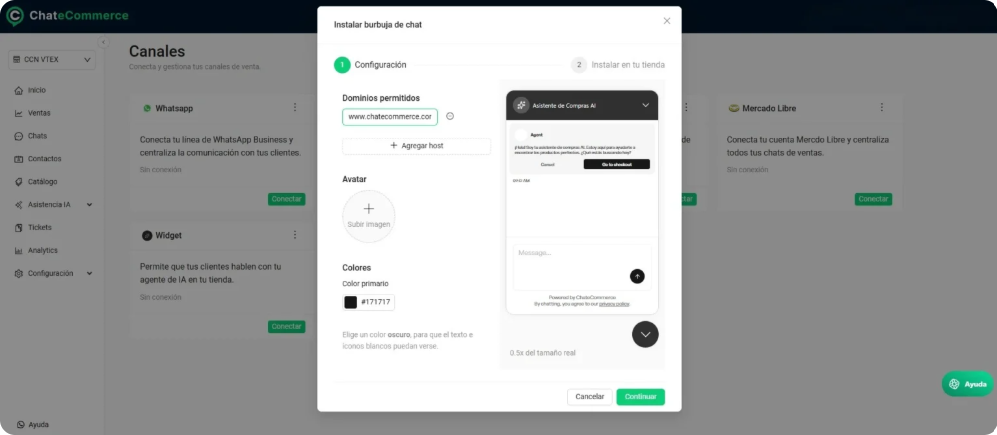
The Widget ShopAgent appears as a channel inside the Channels section of ChateCommerce. From there you can start a guided two-step setup:
Step 1 — Configuration
This step covers:
- Allowed domains: the websites where the widget will be active
- Avatar: the image shown in the chat bubble
- Primary color: the color that identifies the widget on your site
- Preview: lets you preview the result before installation
Step 2 — Installing on your store
Once the configuration is saved, the platform shows you the instructions to install the widget on your site. The process varies depending on the technology you use.
Installation by platform
The interface includes specific installation guides for the following platforms:
- VTEX
- Tiendanube
- Magento
- Shopify
- WooCommerce
💡 Tip: The Widget ShopAgent is not limited to ecommerce platforms. It can be installed on any website, regardless of the technology you use.
If you need help installing it or have questions about the setup, you can reach us directly from the support chat.
Autonomous Store in the Widget
September 2026 brought an important update: you can now manage Autonomous Store sales directly from the widget, without redirecting to WhatsApp.
What is Autonomous Store?
Autonomous Store allows your AI Agent to manage complete sales processes: show products, take orders and manage carts. With this update, the widget is a viable alternative to WhatsApp for users looking to avoid outbound message costs through Meta’s API.
Requirements to use Autonomous Store in the Widget
To activate Autonomous Store in the widget, you need:
✅ Widget ShopAgent installed and configured on your site
✅ Online store connected to ChateCommerce (Shopify, Tiendanube, etc.)
✅ Catalog synced from your ecommerce platform
✅ AI Agent created (default or custom)
✅ Request activation from the ChateCommerce team
How Autonomous Store works in the Widget
Difference from WhatsApp:
- On WhatsApp: the customer sees an embedded web page inside the conversation
- On the Widget: products are displayed directly on the page with:
- Variant name
- Updated price
- Quantity selector
- “Add to cart” button
Purchase flow:
- Customer sees the products in the widget
- Selects quantity and adds to cart
- Continues the conversation with the AI Agent inside the same widget
- Completes the purchase without leaving your site
Activating Autonomous Store
Important note: Activation requires a request to the ChateCommerce team.
Once activated, Autonomous Store works omnichannel and globally:
- It is enabled simultaneously for WhatsApp and the widget
- There is no option to activate it on only one channel
Frequently asked questions
Do I need WhatsApp to use Autonomous Store in the widget?
No. The widget is a viable alternative to WhatsApp. However, once activated, Autonomous Store is enabled on both channels simultaneously.
Can I deactivate Autonomous Store on one channel and keep it on the other?
No. Activation is omnichannel and global. If you activate Autonomous Store, it works on WhatsApp and the widget at the same time.
What happens if a customer adds products manually and then uses the AI Agent?
The AI Agent’s cart overwrites the manual cart. It is recommended that customers choose one method: buying through the AI Agent or doing it manually, but not both simultaneously.
Can the widget sync catalogs from any platform?
Yes, as long as it is connected to ChateCommerce. It supports Shopify, Tiendanube, VTEX, Magento, and WooCommerce.
Does the widget work without Autonomous Store?
Yes, but with limited functionality. Without Autonomous Store activated, your AI Agent can:
- Answer product questions
- Create support tickets
- Hand off to human agents
What it cannot do is create carts or complete sales. For the widget to handle purchases, you need to request Autonomous Store activation from the ChateCommerce team.

Next steps
Need help? You can:
- Try ChateCommerce for 15 days
- Contact the support team
- View your platform guides